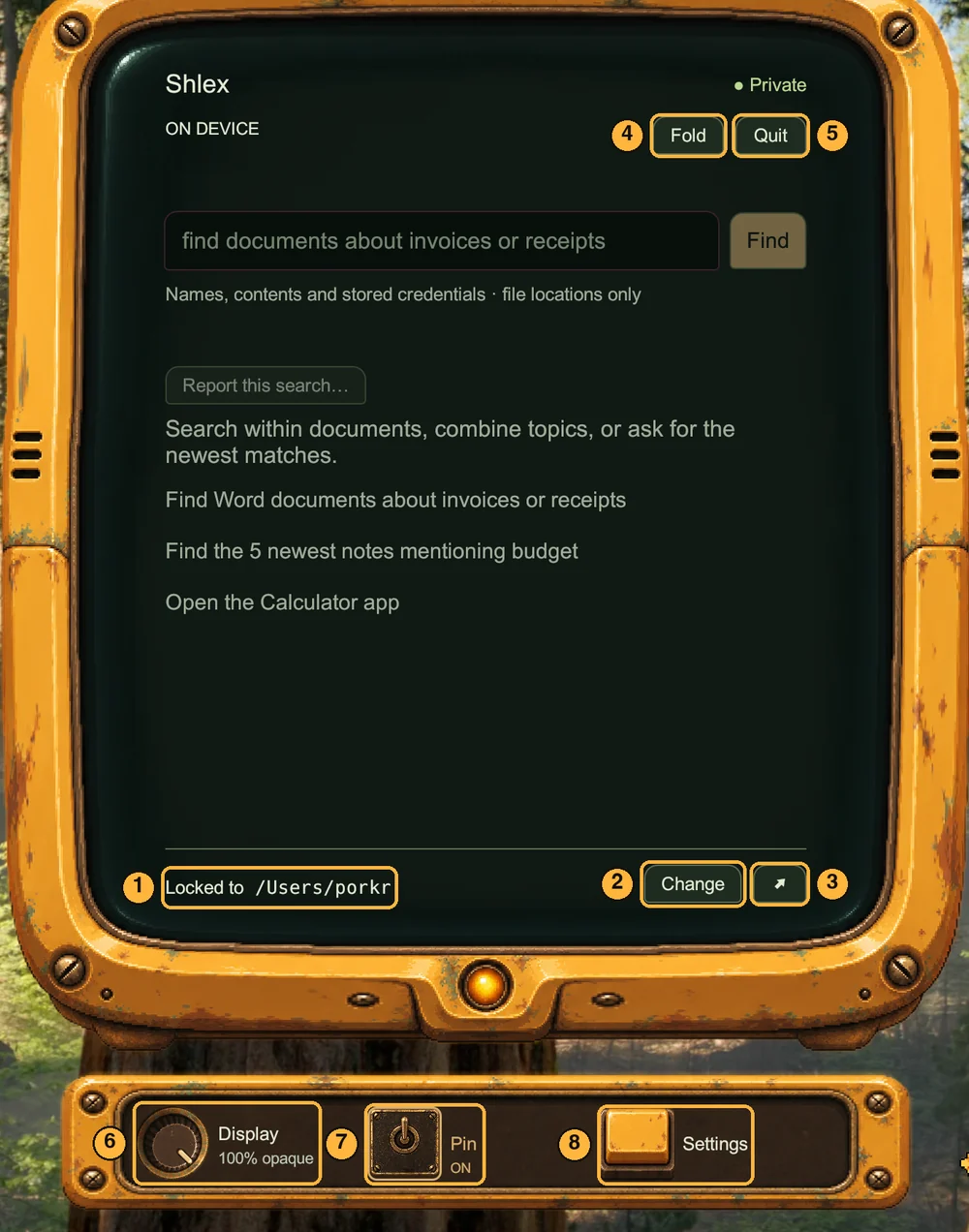
What each control in Shlexball does, starting with the most important one: the folder Shlexball is locked to. Every button in the app also explains itself. Hover over it for a tooltip.
Lock Shlexball to one folder
Locked to is the only folder Shlexball can see. Searches cover this folder and every folder inside it, and nothing outside it is read. Hover over the path to see it in full, or click it to pick another folder.
Change opens the folder picker. Choose a smaller folder, such as your Documents or one project, for faster and more focused results. Choose your home folder to search everything you own.
↗ shows the locked folder in Finder.
Apps and System Settings panes are found wherever they are. They need no folder and never use a free search.
The window and control deck
Fold tucks the panels behind Shlexball. Shortcut: Esc.
Quit closes Shlexball. Shortcut: ⌘Q.
Display: turn the dial to make the screen see-through, anywhere from fully clear to fully opaque.
Pin: ON keeps Shlexball above other windows. OFF lets other windows cover it.
Settings opens the Settings panel described below.
Settings: updates and search
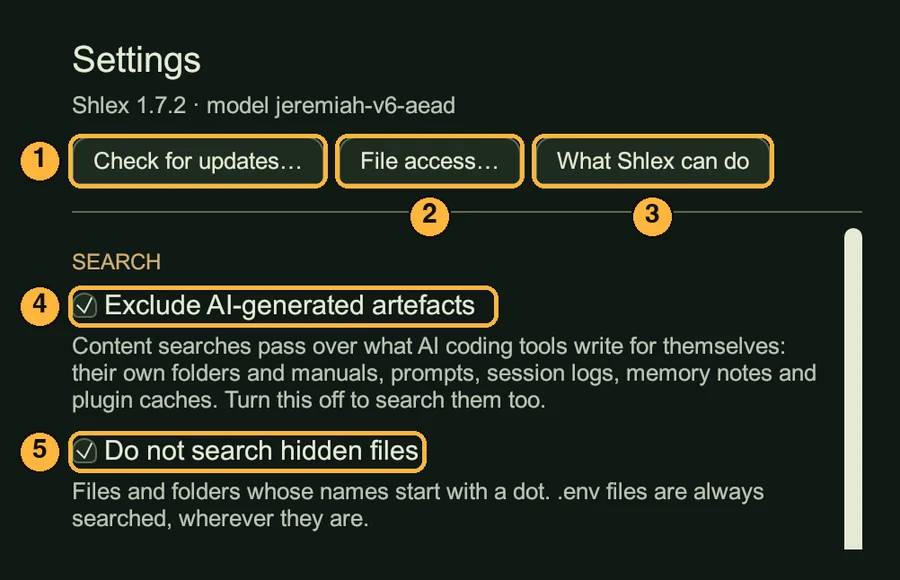
Check for updates… looks for a newer search model first and downloads it only if there is one. Then it checks for a newer Shlexball and offers to install it. Shlexball also checks by itself every hour and installs an update when no search is running.
File access… shows how to give Shlexball Full Disk Access, so it can search protected folders such as Desktop, Documents and Mail. You grant it in System Settings. Shlexball cannot turn it on by itself.
What Shlexball can do opens a short guide to the kinds of searches Shlexball understands.
Exclude AI-generated artefacts (on by default): content searches skip what AI coding tools write for themselves, such as their prompts, session logs, memory notes and plugin caches. Turn it off to search them too.
Do not search hidden files (on by default): skips files and folders whose names start with a dot. .env files are always searched.
What Check for updates shows when you already have the newest Shlexball.
Settings: privacy
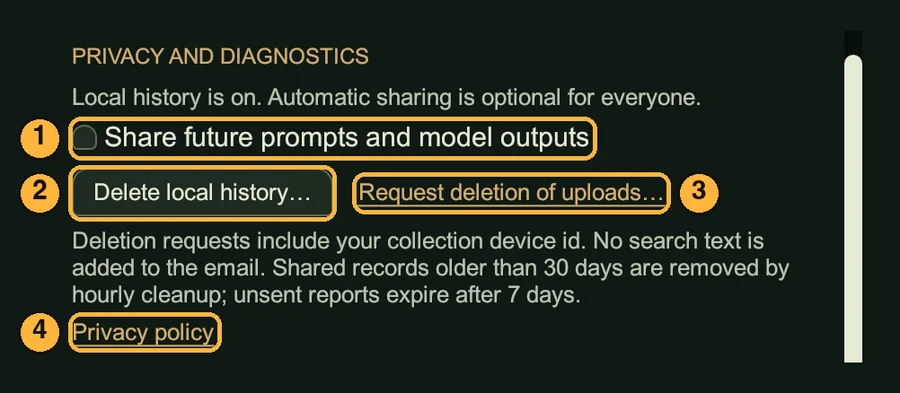
Share future prompts and model outputs is off unless you turn it on. When on, it sends what you type and what Shlexball answered, to help improve Shlexball. Turning it off deletes reports that have not been sent yet.
Delete local history… erases the list of past searches kept on this Mac. Shlexball asks you to confirm first.
Request deletion of uploads… starts an email asking Shlexball support to delete anything this Mac shared. The email includes your device id, not your searches.
Privacy policy opens the full policy in your browser.
Settings: plan and troubleshooting
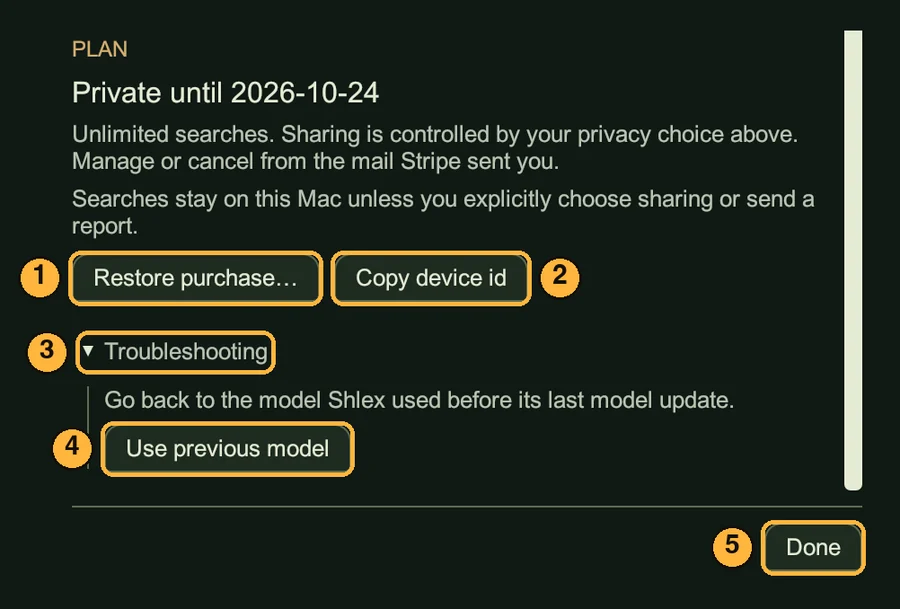
Restore purchase… links this Mac to your subscription with your licence key or a link mailed to you. One subscription covers two Macs.
Copy device id copies this Mac's id, for support or deletion requests.
Troubleshooting opens recovery options.
Use previous model goes back to the model you had before the last model update, if searches got worse after it.
Done closes Settings. Changes are saved as you make them.
The line under PLAN shows your plan, such as the date your Private plan runs until, or how many free searches you have left.
PRESS STARTTRY IT ON YOUR MAC
Free to try: your first 30 searches are free, then upgrade inside the app. Shlexball only reads: it never moves or deletes a file.